Android Setup Guide
Gmail app (Android)
The Gmail app on Android can handle multiple email accounts, including Topmail. These steps take about two minutes and work on any Android phone or tablet.
Settings at a Glance
Incoming Mail (IMAP)
Outgoing Mail (SMTP)
Steps
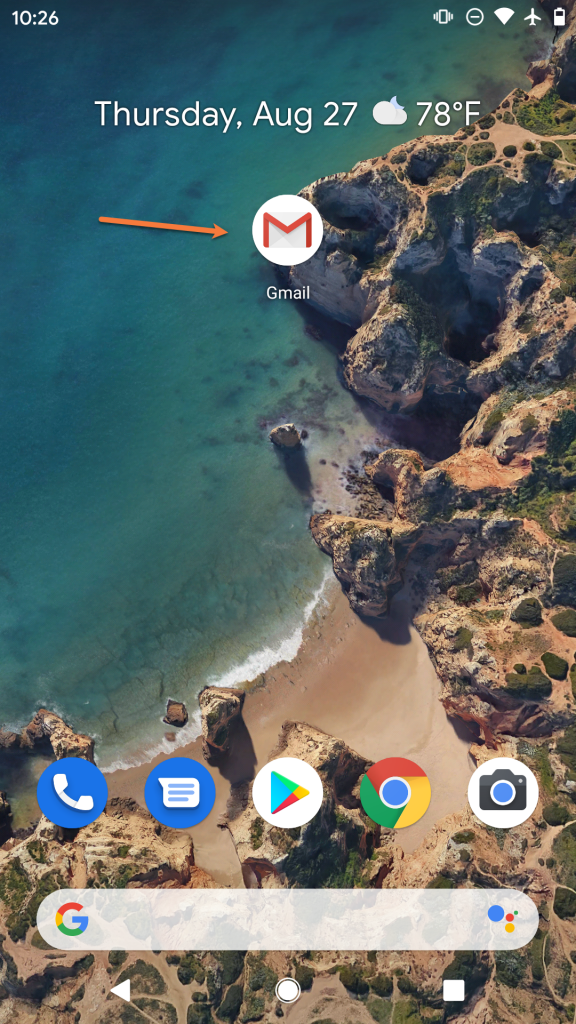
Open the Gmail app
Tap Gmail on your home screen or app drawer.
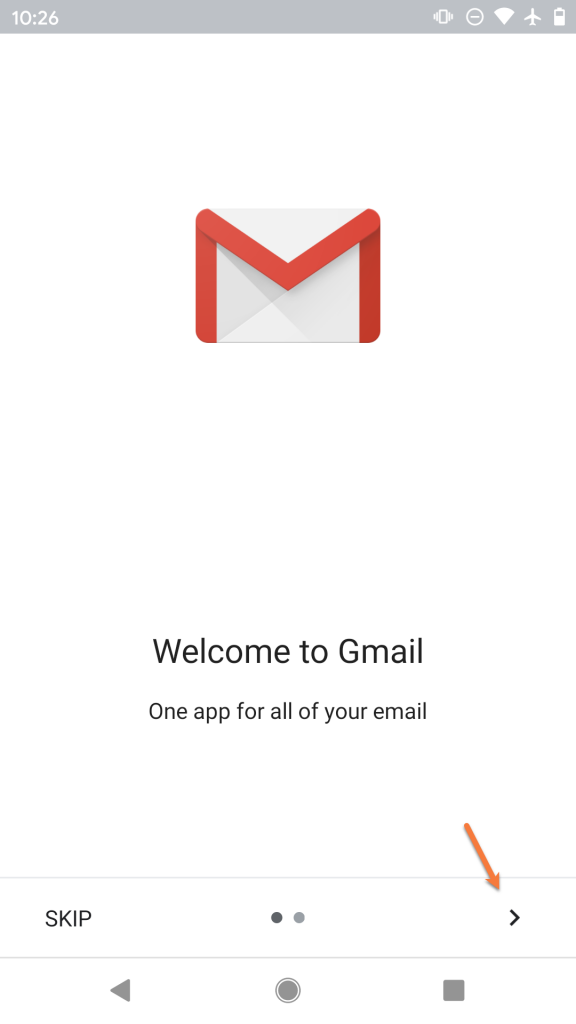
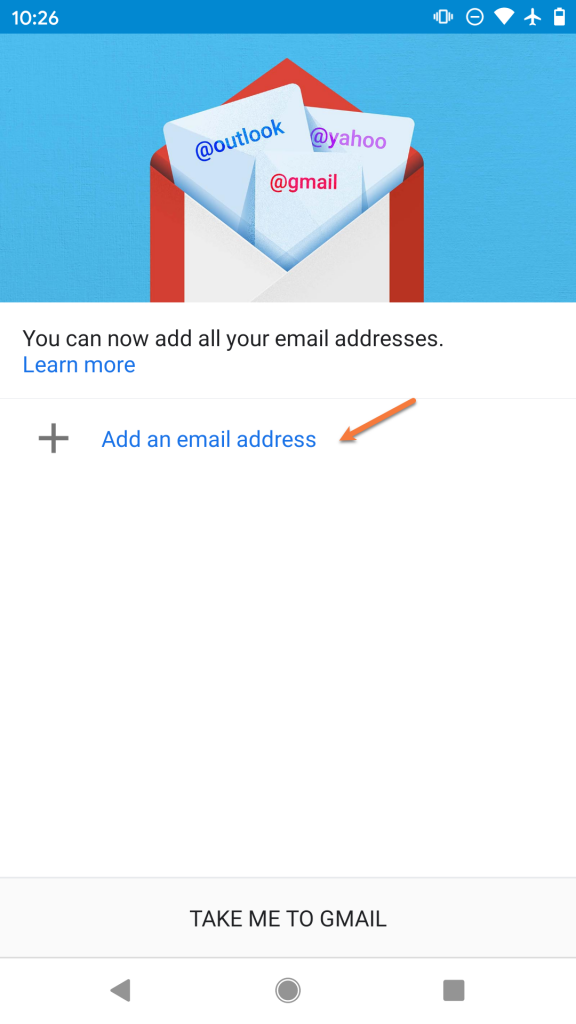
Add another account
Tap your profile picture in the top-right corner, then tap Add another account.
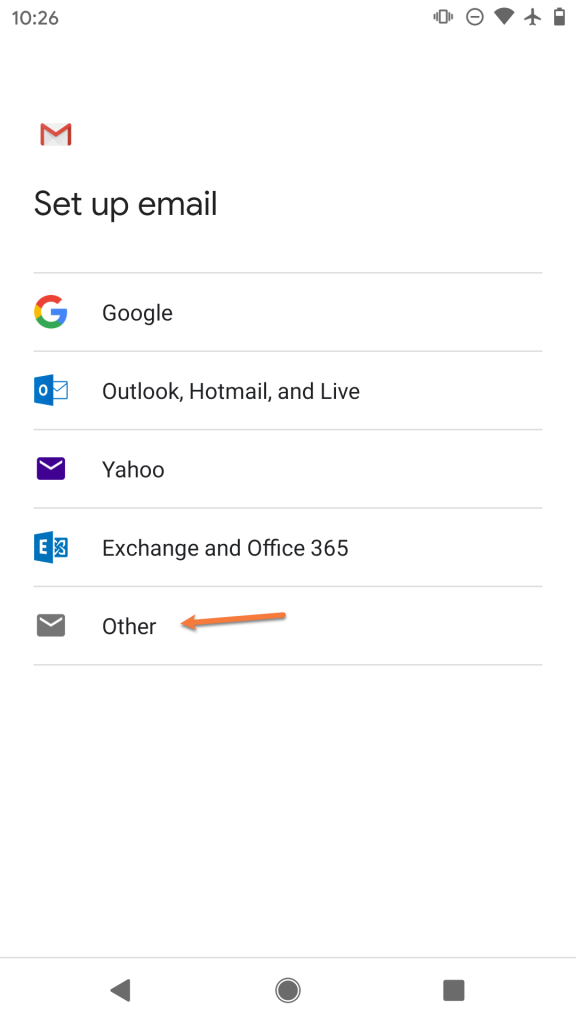
Choose "Other"
On the "Set up email" screen, tap Other at the bottom of the list.
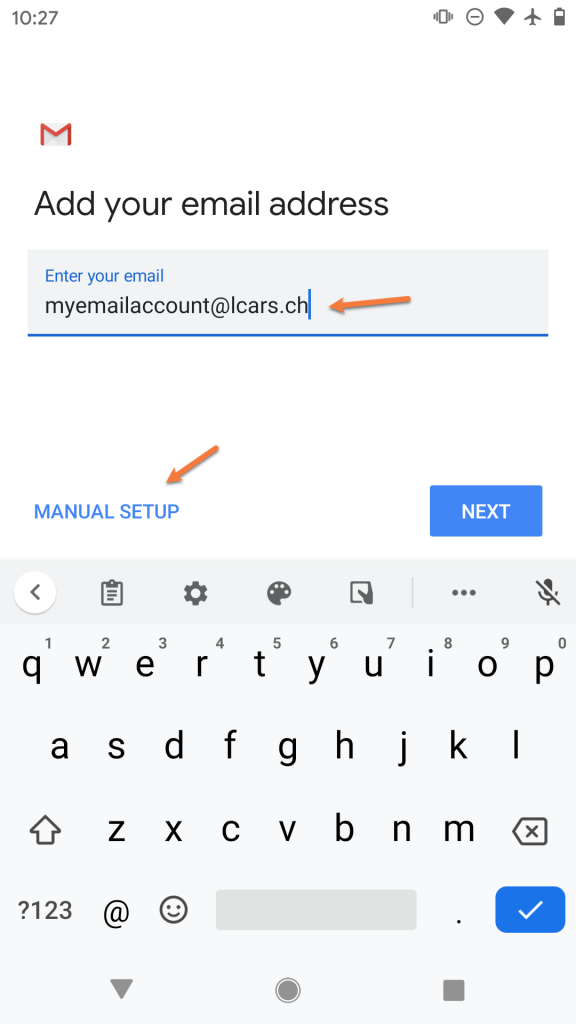
Enter your email address
Type your full email address and tap Next.
Tap "Manual setup"
On the next screen, tap Manual setup rather than letting Gmail attempt automatic configuration.
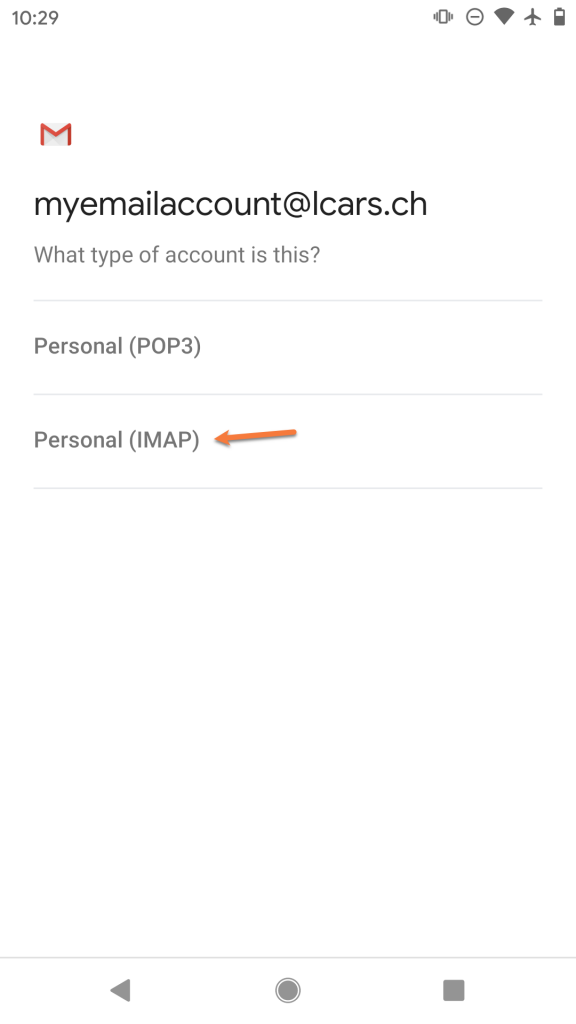
Select "Personal (IMAP)"
Choose Personal (IMAP) as the account type.
Enter your password
Type your email password and tap Next.
Incoming server settings
Fill in the incoming mail settings:
- Username: your full email address
- Password: your email password
- IMAP server:
imap.topmail.com
If your version of the Gmail app also shows Security type and Port fields, set them to SSL/TLS and 993. Tap Next.
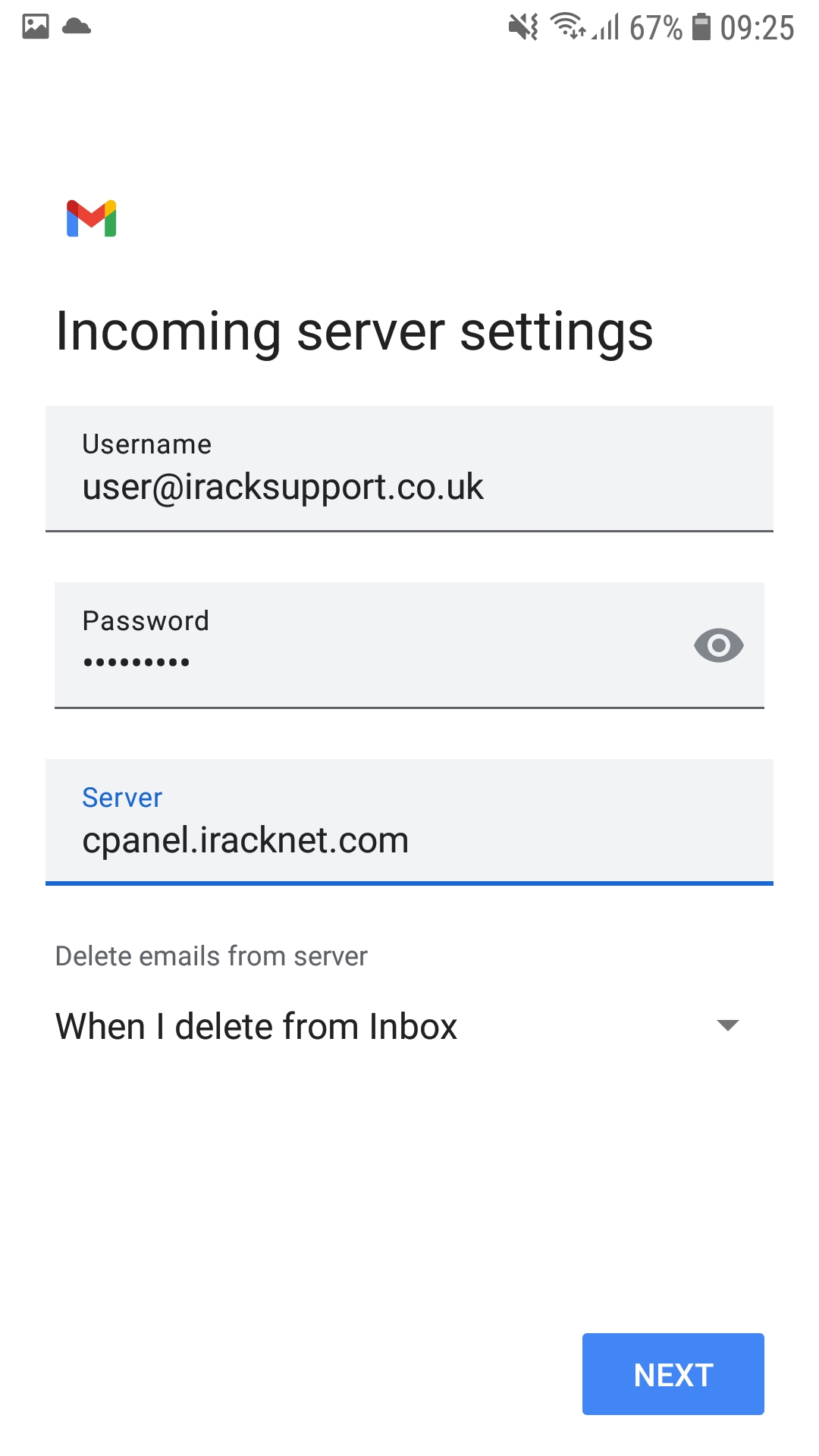
imap.topmail.com in the Server field — use your full email as the usernameOutgoing server settings
Fill in the outgoing (SMTP) settings:
- SMTP server:
smtp.topmail.com - Require sign-in: on
- Username: your full email address
- Password: your email password
If your version of the app shows Security type and Port fields, set them to STARTTLS and 587. Tap Next.
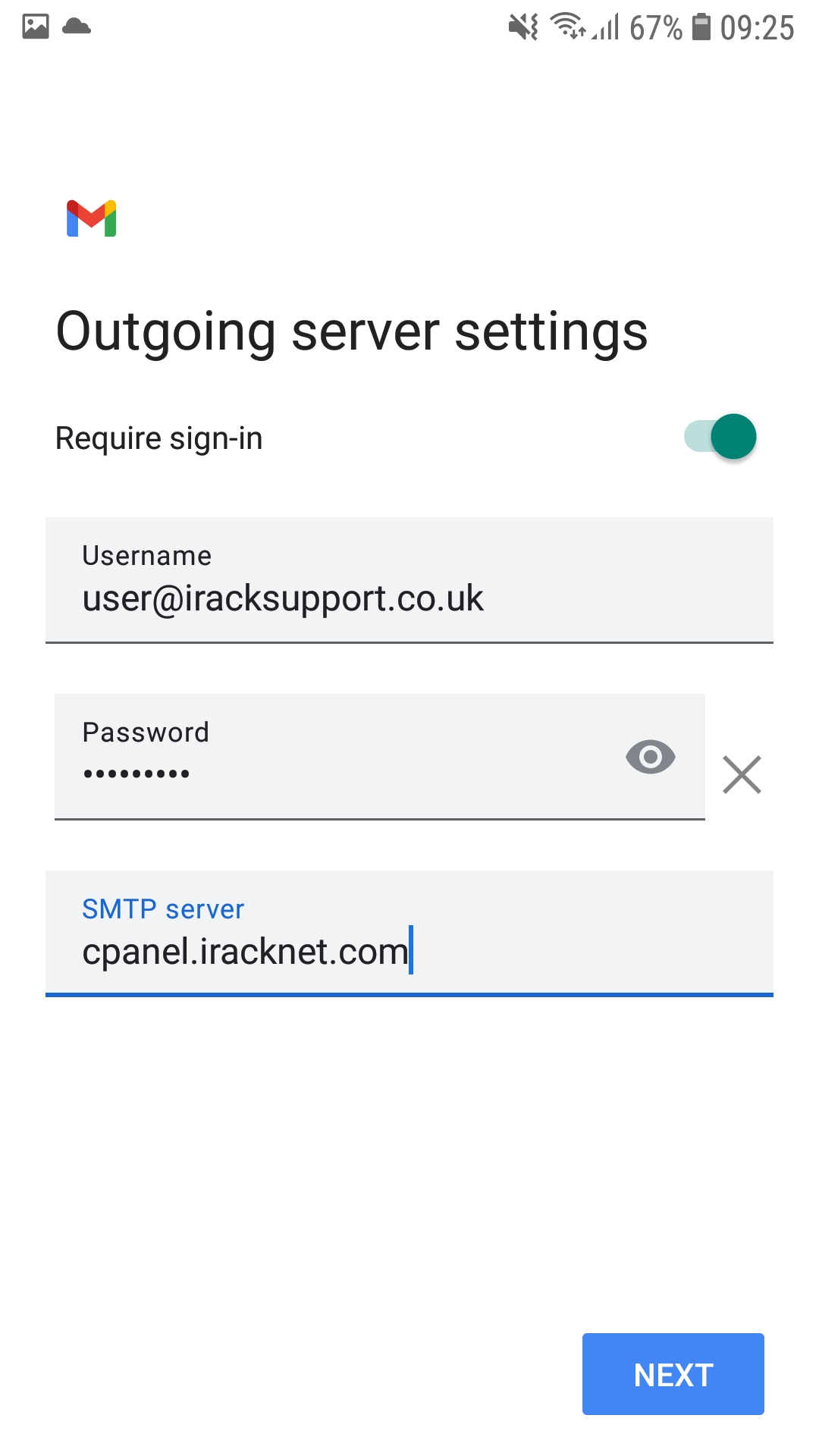
smtp.topmail.com in the SMTP server field — keep "Require sign-in" enabledSync options and finish
Choose your sync frequency and notification preferences, then tap Next.
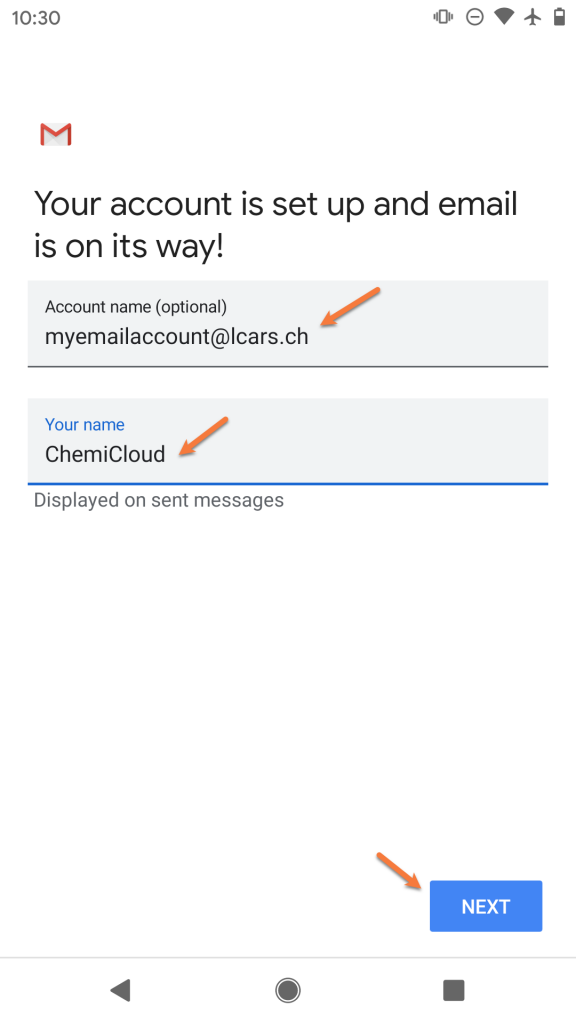
Give the account a display name if you wish, confirm your outgoing name, and tap Next. Your Topmail inbox will appear in the Gmail app's sidebar.
Troubleshooting
Double-check the IMAP server is imap.topmail.com (not imap.gmail.com), the security type is SSL/TLS, and the port is 993.
Make sure your username is your full email address, including the domain. Check your password is correct by logging in at mail.topmail.com.
Verify the SMTP server is smtp.topmail.com, port 587, security type STARTTLS, with "Require sign-in" checked and your credentials entered.