Samsung Email Setup Guide
Samsung Email app (Android)
The Samsung Email app is pre-installed on Galaxy phones and tablets. These steps add your Topmail account and typically take under two minutes.
Settings at a Glance
Incoming Mail (IMAP)
Outgoing Mail (SMTP)
Steps
Open Samsung Email
Tap Samsung Email in your app drawer or home screen. If this is your first account the setup screen opens automatically — skip to step 3. If you already have accounts, tap the menu icon (≡) → Settings → Add account.
Choose your email provider
On the provider selection screen, tap Other at the bottom of the list (you may also see it labelled Setup manually).
Enter your email and select Manual setup
Enter your full email address and tap Manual setup. If the app asks for your password first, enter it and then look for the Manual setup option on the next screen.
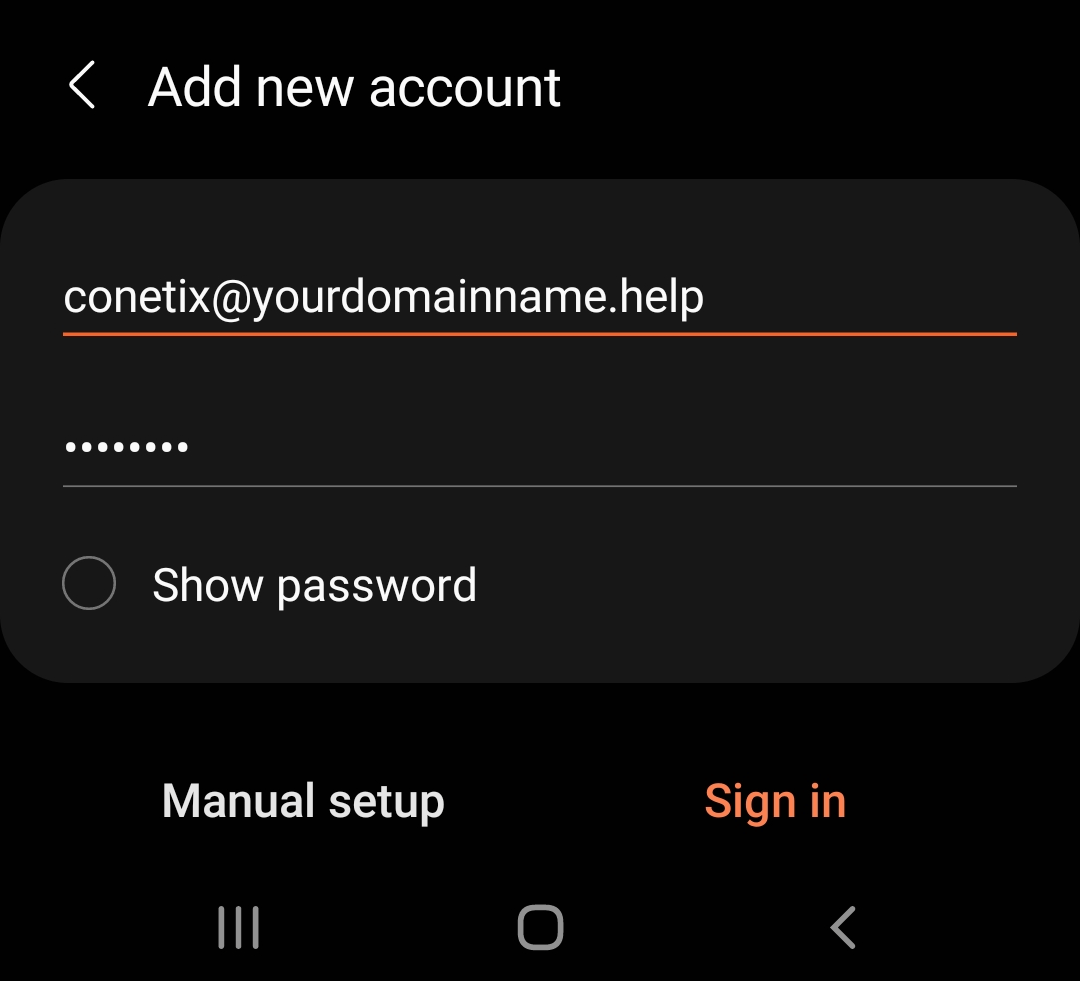
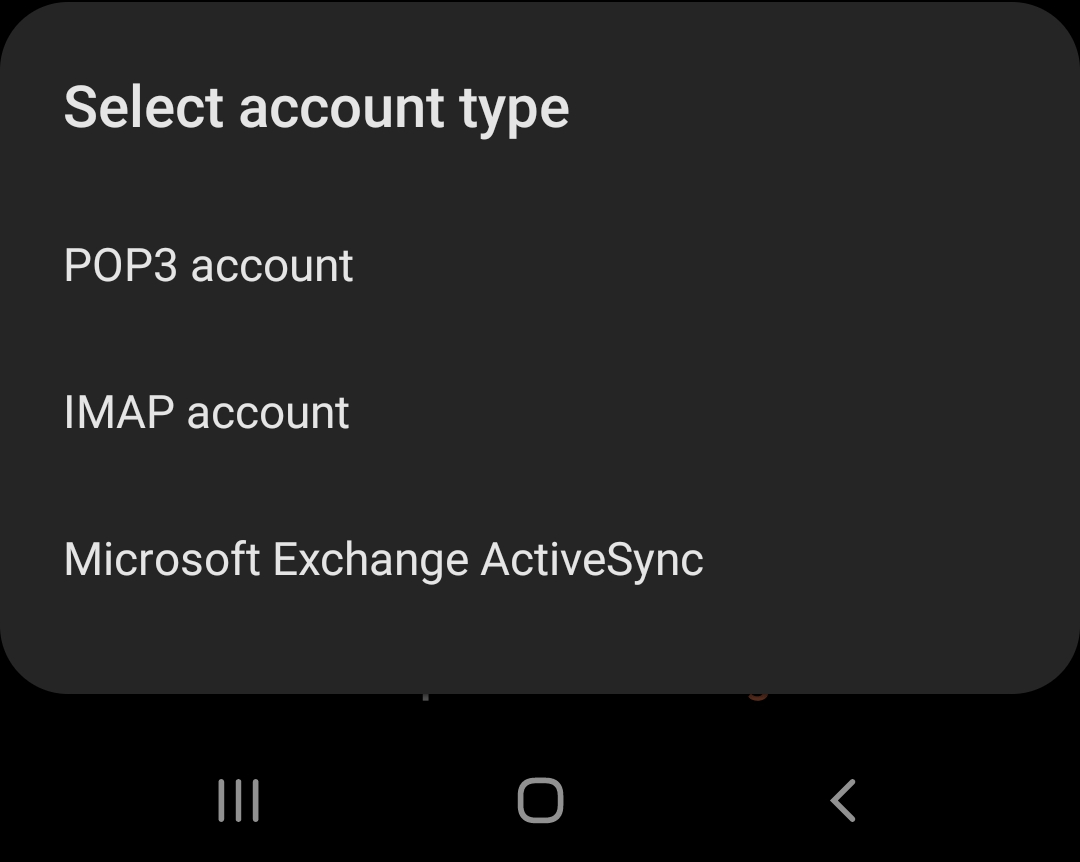
Select IMAP account
When asked for the account type, tap IMAP account.
Incoming server settings
The app shows a Server settings screen with incoming and outgoing sections. Fill in the Incoming server fields:
- Email address / Username: your full email address
- Password: your email password
- IMAP server:
imap.topmail.com - Security type: SSL
- Port: 993
- IMAP path prefix: leave blank
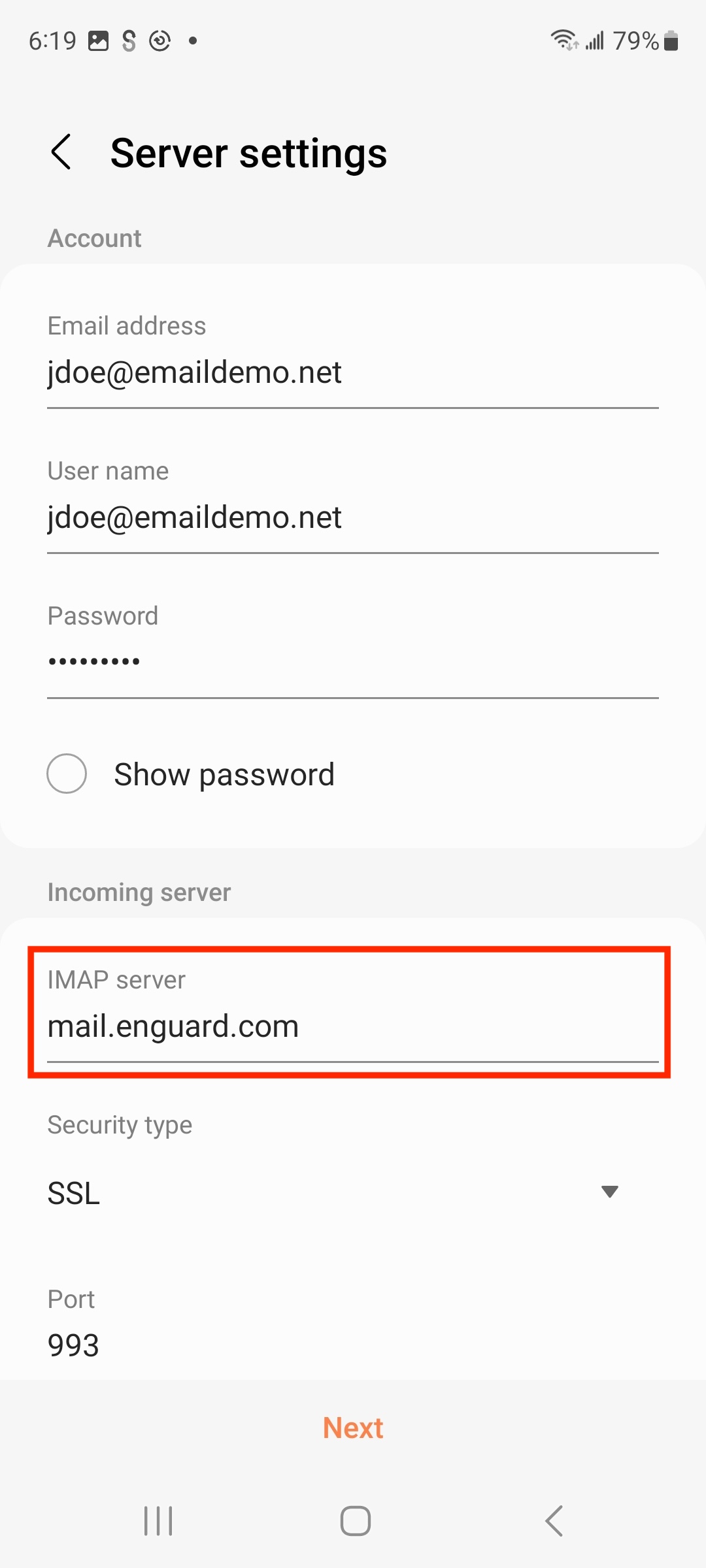
imap.topmail.com, port 993, SSLOutgoing server settings
Scroll down on the same screen to fill in the Outgoing server fields:
- SMTP server:
smtp.topmail.com - Security type: TLS
- Port: 587
- Require authentication: on
- Username: your full email address
- Password: your email password
Tap Next.
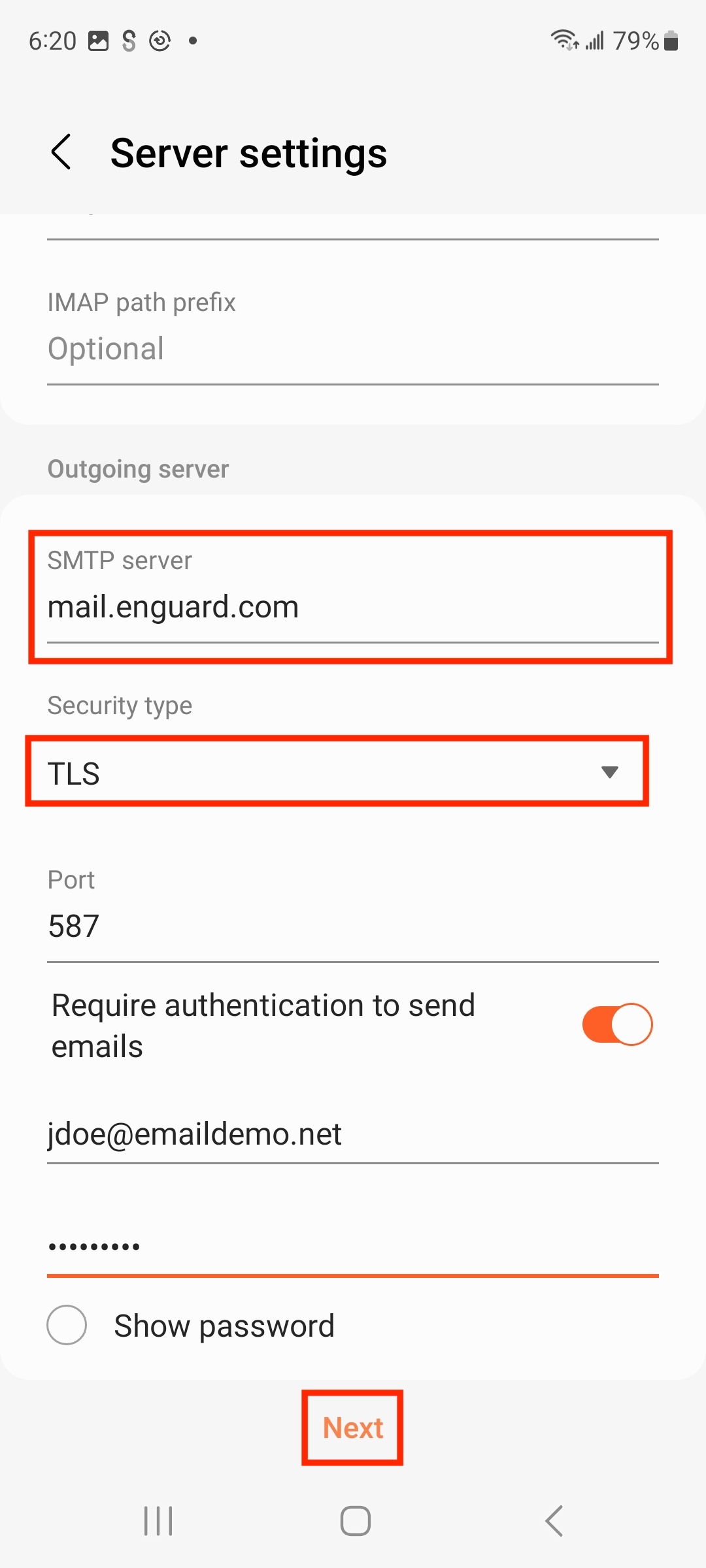
smtp.topmail.com, port 587, TLSSet sync options and finish
Choose how often Samsung Email should check for new messages and whether to enable notifications. Tap Done to complete setup.
Your Topmail inbox will now appear in the app's sidebar.
Troubleshooting
Verify the IMAP server is imap.topmail.com, port 993, security type SSL/TLS. Make sure your username is the full email address.
Check the SMTP server is smtp.topmail.com, port 587, security type STARTTLS, with authentication required and your credentials filled in.
The password may have changed or been entered incorrectly. Go to Settings → [your account] → Incoming/Outgoing settings to re-enter it.