iPhone & iPad Setup Guide
Apple Mail app (iOS / iPadOS)
Follow these steps to add your Topmail account to the built-in Mail app on your iPhone or iPad. The process takes around two minutes.
Settings at a Glance
Incoming Mail (IMAP)
Outgoing Mail (SMTP)
Steps
Open Settings
Tap the Settings app on your home screen.
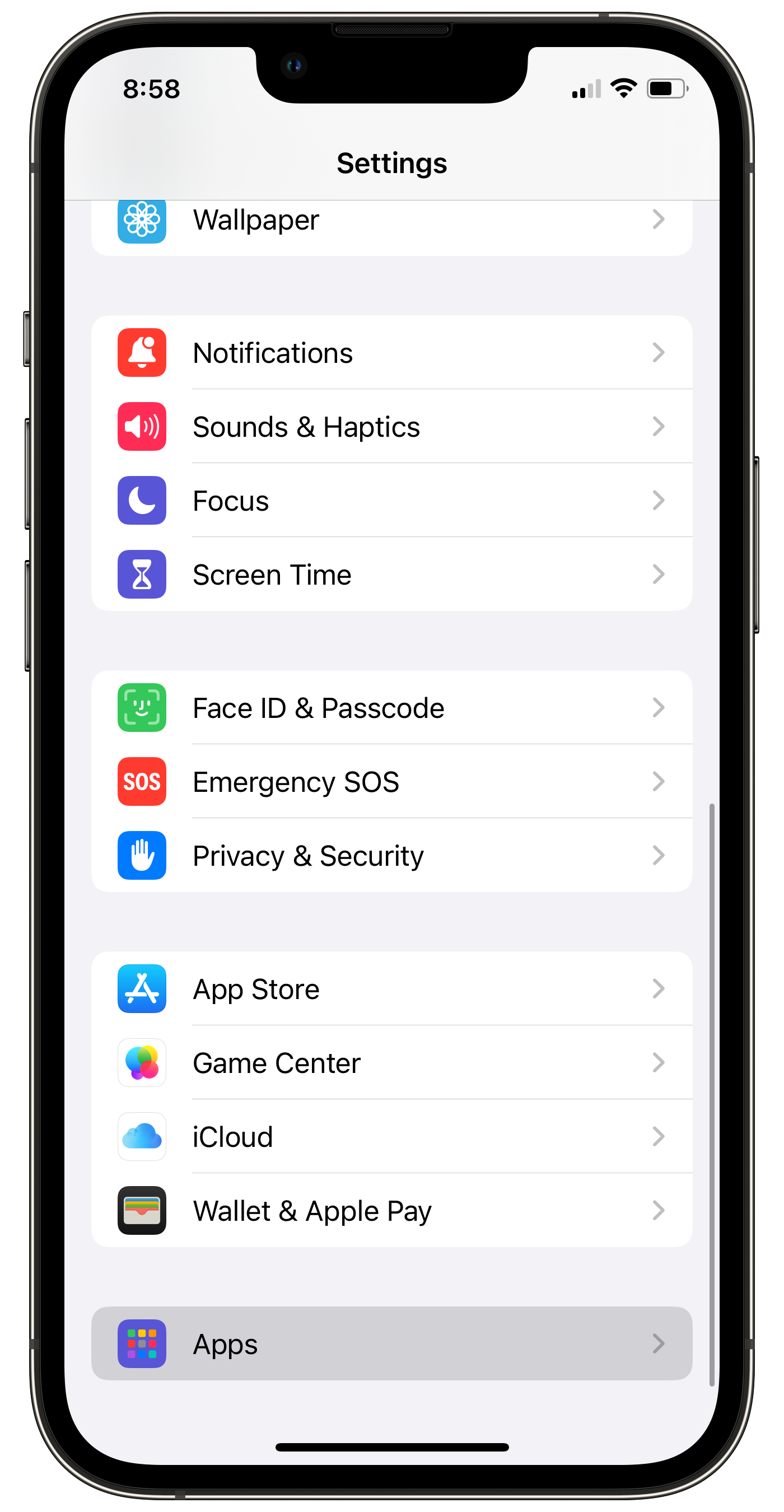
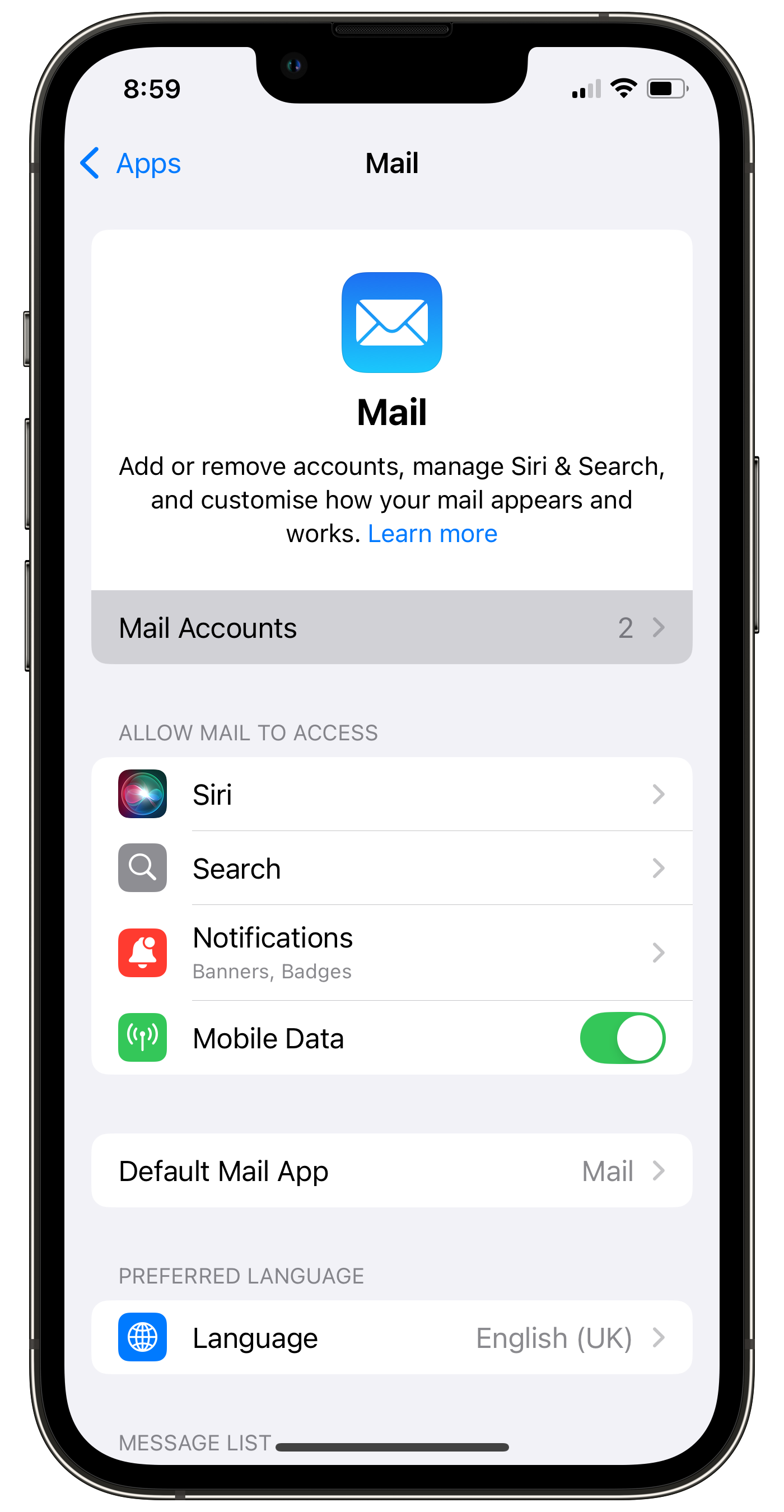
Go to Mail → Accounts
Scroll down and tap Mail, then tap Accounts.
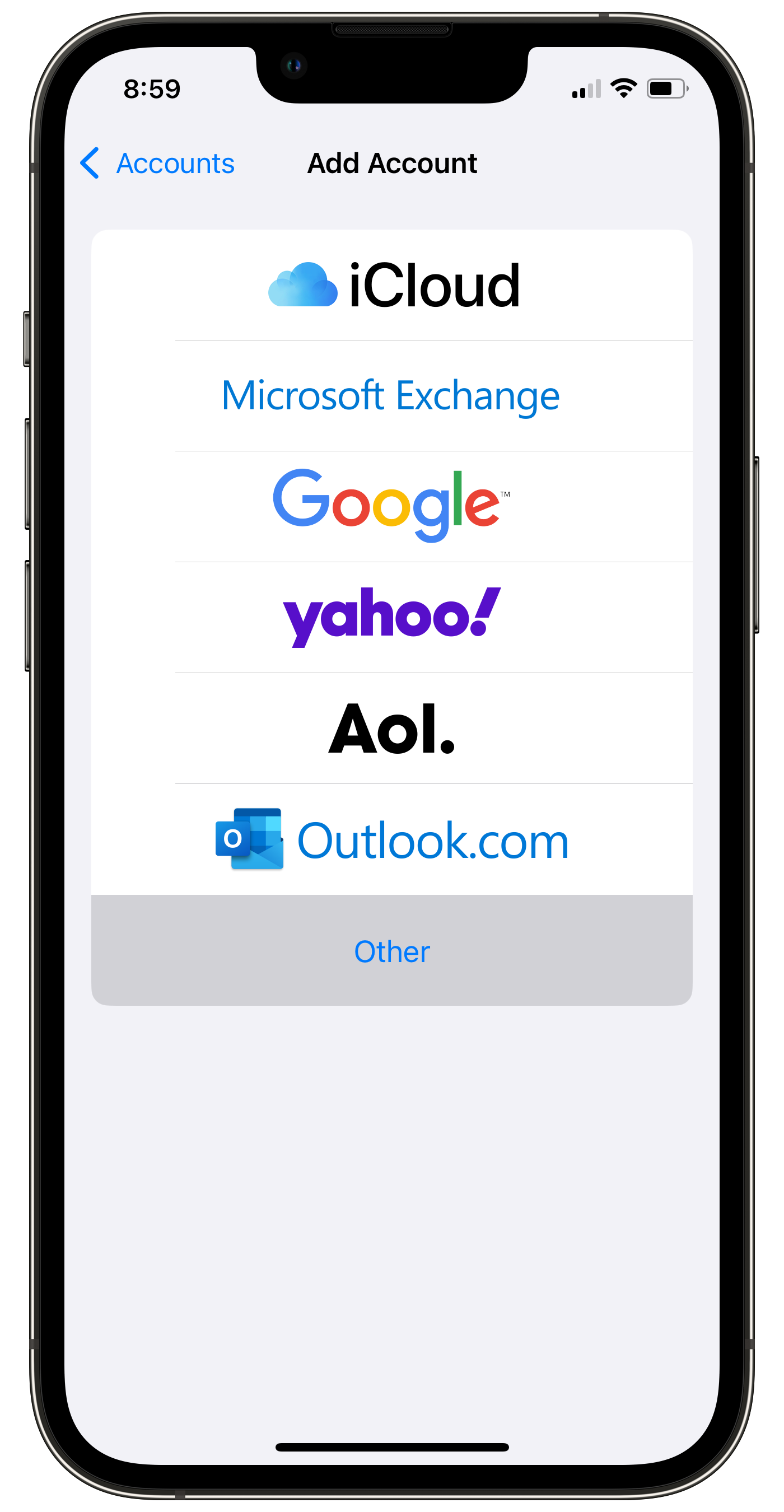
Add Account → Other
Tap Add Account, then scroll to the bottom of the provider list and tap Other.
Tap "Add Mail Account"
On the Other screen, tap Add Mail Account at the top.
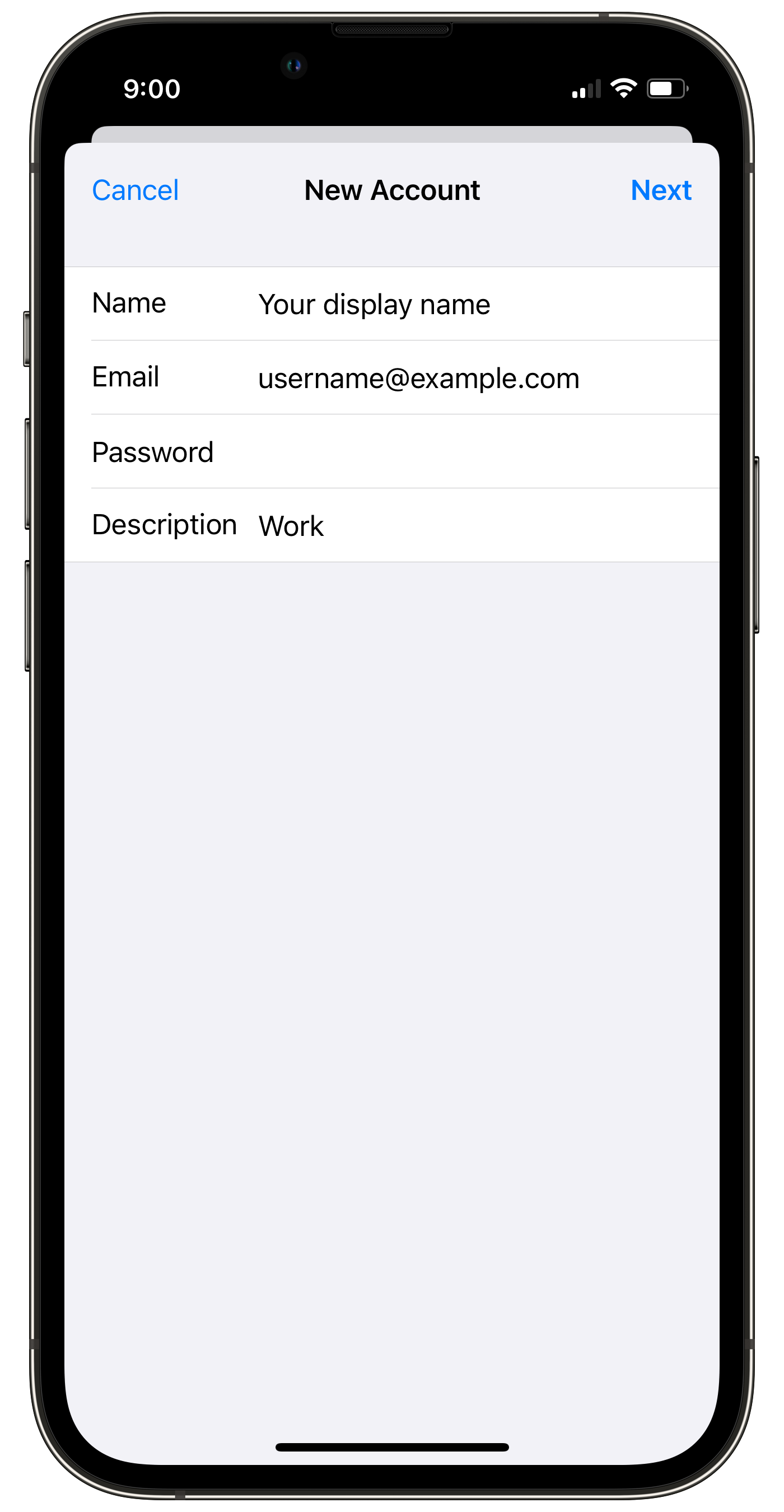
Enter your account details
Fill in the new account form:
- Name — your name (appears on outgoing emails)
- Email — your full email address
- Password — your email password
- Description — a label for this account, e.g. Topmail
Tap Next.
Choose IMAP and enter server settings
Make sure IMAP is selected at the top of the screen (not POP3).
Under Incoming Mail Server:
- Host Name:
imap.topmail.com - User Name: your full email address
- Password: your email password
Under Outgoing Mail Server:
- Host Name:
smtp.topmail.com - User Name: your full email address
- Password: your email password
Tap Next.
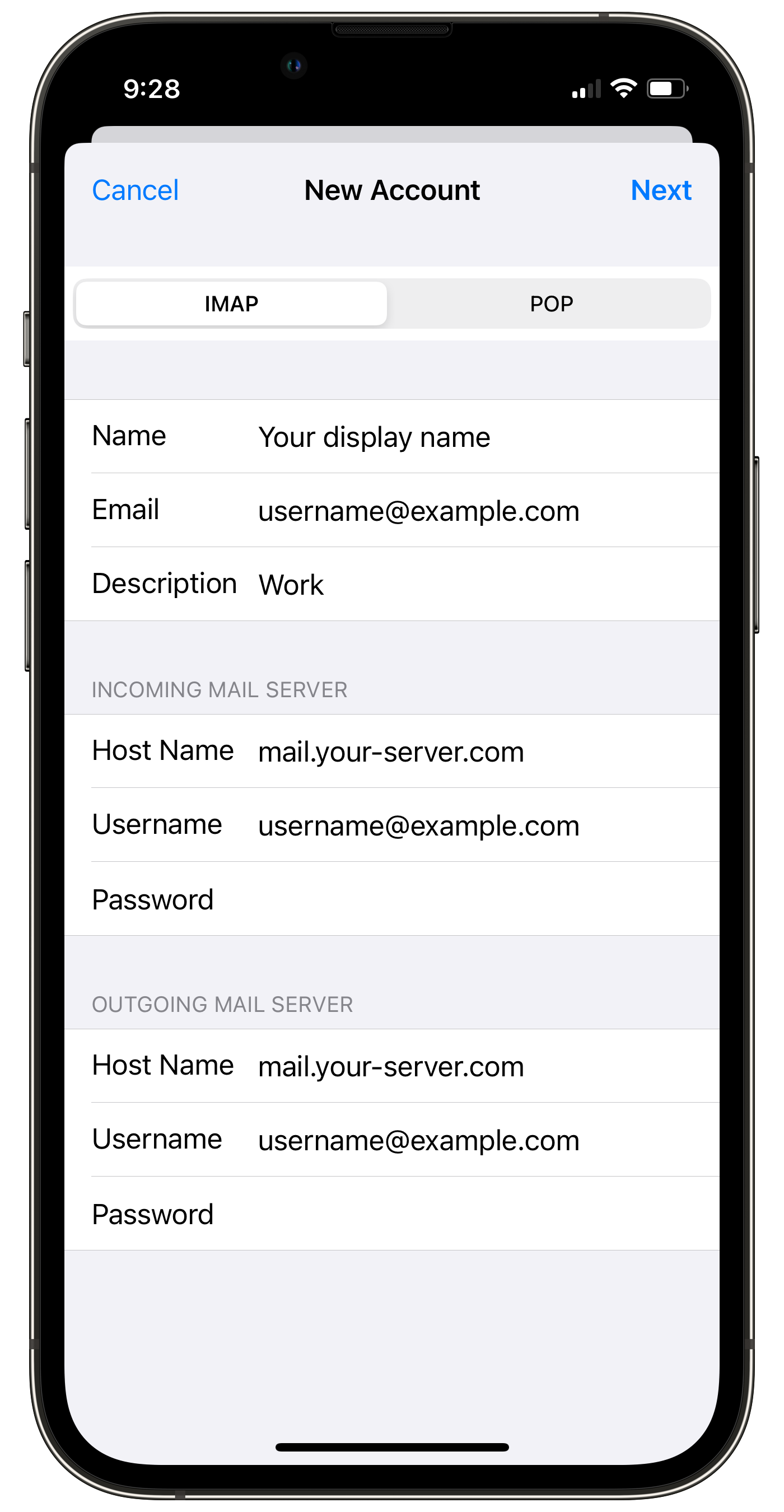
imap.topmail.com as the incoming host nameSave the account
iOS will verify your settings — this takes a few seconds. Once verified, tap Save.
Verify and test
Open the Mail app. Your Topmail inbox should appear. Send a test message to yourself to confirm sending is working.
Troubleshooting
Go to Settings → Mail → Accounts → [your account] → Account → Outgoing Mail Server → smtp.topmail.com → tap the server → check that port is 587 and SSL is enabled.
Make sure you are entering your full email address as the username (e.g. yourname@example.com), not just the local part.
Go to Settings → Mail → Accounts → [your account] → Account → Advanced. Confirm "Use SSL" is toggled on and the server port is 993.
Check your device has an internet connection, then go to Settings → Mail → Accounts → Fetch New Data and set Push or a short fetch interval.