Outlook for Android Setup Guide
Microsoft Outlook app (Android)
Microsoft Outlook for Android supports custom IMAP accounts. Follow these steps to add your Topmail account. The process takes around two minutes.
Settings at a Glance
Incoming Mail (IMAP)
Outgoing Mail (SMTP)
Steps
Open Outlook settings
Open the Outlook app. Tap the Settings gear icon at the bottom-left of the screen.
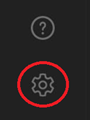
Add an email account
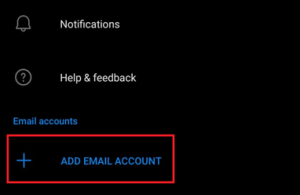
Scroll to the top of the Settings panel and tap Add Mail Account.
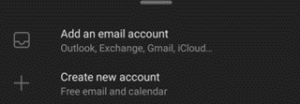
Tap "Add an email account"
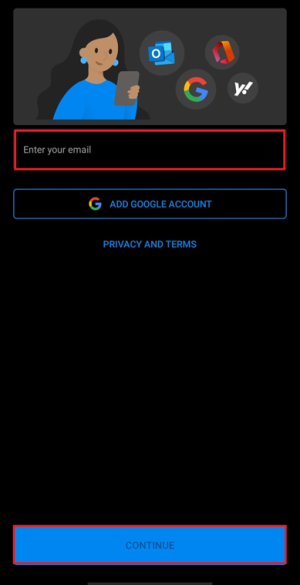
Enter your email address
Type your full email address and tap Continue.
Choose IMAP (via Advanced)
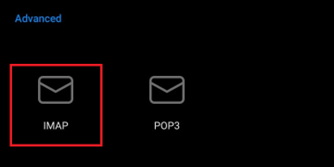
Outlook will try to auto-configure your account. Tap Advanced near the bottom of the screen, then select IMAP as the account type.
Enter all server settings
Fill in the complete server configuration:
- IMAP host name:
imap.topmail.com - IMAP username: your full email address
- IMAP password: your email password
- IMAP port: 993
- IMAP security: SSL/TLS
- SMTP host name:
smtp.topmail.com - SMTP username: your full email address
- SMTP password: your email password
- SMTP port: 587
- SMTP security: STARTTLS
Tap the checkmark ✓ in the top-right corner to save and connect.
Finish setup
Outlook will verify the connection and add your account. Tap Skip or Maybe Later if prompted to add another account.
Your Topmail inbox will now appear in Outlook's sidebar.
Troubleshooting
After entering your email address and tapping Continue, look near the bottom of the screen for a link or button labelled Advanced or Advanced settings. It can sometimes be below the keyboard — scroll down.
Make sure your username is your full email address (including the domain). Verify your password at mail.topmail.com.
Check the SMTP server is smtp.topmail.com, port 587, security STARTTLS, with your credentials entered in the SMTP fields.