Outlook for iPhone Setup Guide
Microsoft Outlook app (iOS / iPadOS)
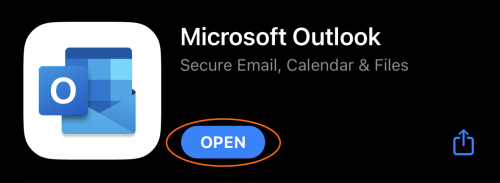
Microsoft Outlook is a popular mail app available free from the App Store. Follow these steps to add your Topmail account.
Settings at a Glance
Incoming Mail (IMAP)
Outgoing Mail (SMTP)
Steps
Open Outlook
Install Microsoft Outlook from the App Store if needed, then open the app. If you already have accounts set up, tap your profile icon (top-left) → tap the envelope + icon → Add Email Account.
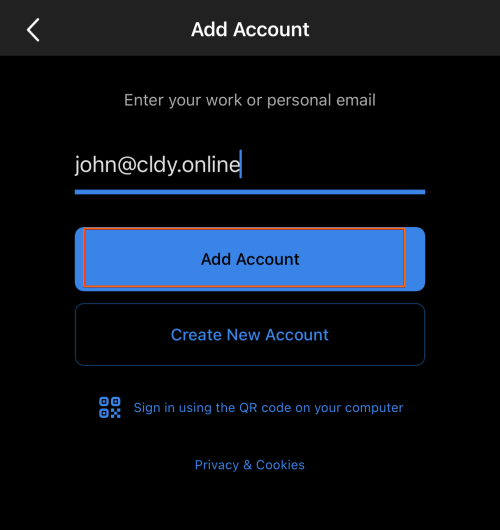
Enter your email address
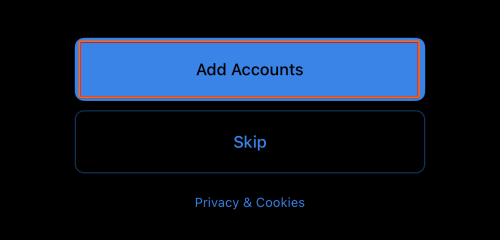
Tap Add Account on the welcome screen. Type your full email address and tap Add Account.
Choose IMAP
Outlook will attempt to detect your mail provider automatically. When it cannot, it will display a list of account types. Scroll down and tap IMAP.
Enter IMAP and SMTP settings
Fill in the server configuration fields:
- IMAP Host Name:
imap.topmail.com - IMAP Username: your full email address
- IMAP Password: your email password
- SMTP Host Name:
smtp.topmail.com - SMTP Username: your full email address
- SMTP Password: your email password
Tap Sign In.
Complete the setup
Outlook may show a privacy or notification prompt — review and accept as you prefer. Tap Maybe Later when asked to add another account.
Your Topmail inbox will now appear in Outlook's account list.
Troubleshooting
This is expected — Topmail isn't an auto-detected provider. Simply scroll down past the auto-detected options and select IMAP to enter settings manually.
Double-check that your username is your full email address and your password is correct. Try logging into mail.topmail.com to confirm your password works.
In Outlook, go to Settings → [your account] → SMTP and verify the server is smtp.topmail.com, port 587, with TLS enabled.