Outlook for Windows Setup Guide
Microsoft Outlook · Windows (Microsoft 365 / Office)
These steps cover the full desktop Outlook application (Microsoft 365 / Office 2021 and later) on Windows. The process takes around three minutes.
Settings at a Glance
Incoming Mail (IMAP)
Outgoing Mail (SMTP)
Steps
Open Outlook and start adding an account
Open Microsoft Outlook on your Windows PC.
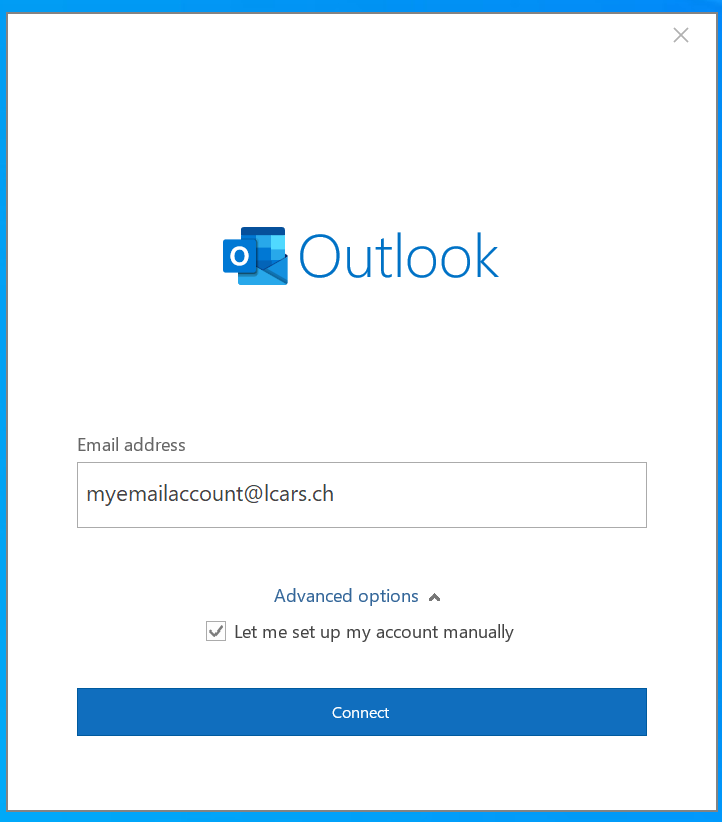
- First time using Outlook: The "Welcome to Outlook" screen will ask for your email address. Enter it, expand Advanced options, check Let me set up my account manually, then click Connect.
- Already have accounts: Click File → Add Account, then follow the same steps above.
Choose IMAP
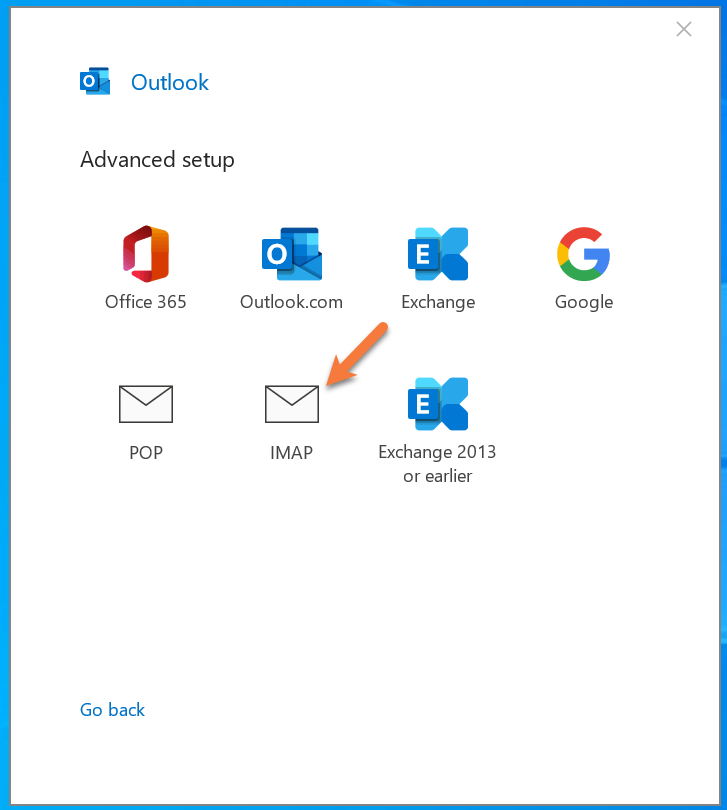
In the account type selection screen, click IMAP.
Enter server settings
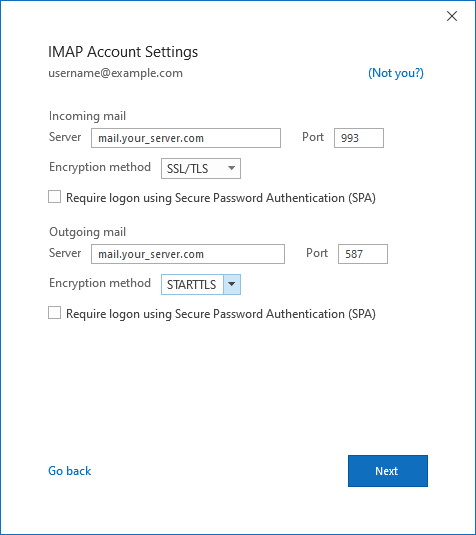
Fill in both the incoming and outgoing server details:
Incoming Mail (IMAP):
- Server:
imap.topmail.com - Port: 993
- Encryption method: SSL/TLS
Outgoing Mail (SMTP):
- Server:
smtp.topmail.com - Port: 587
- Encryption method: STARTTLS
Click Next.
Enter your password
Type your email password when prompted and click Connect.
Confirm and finish
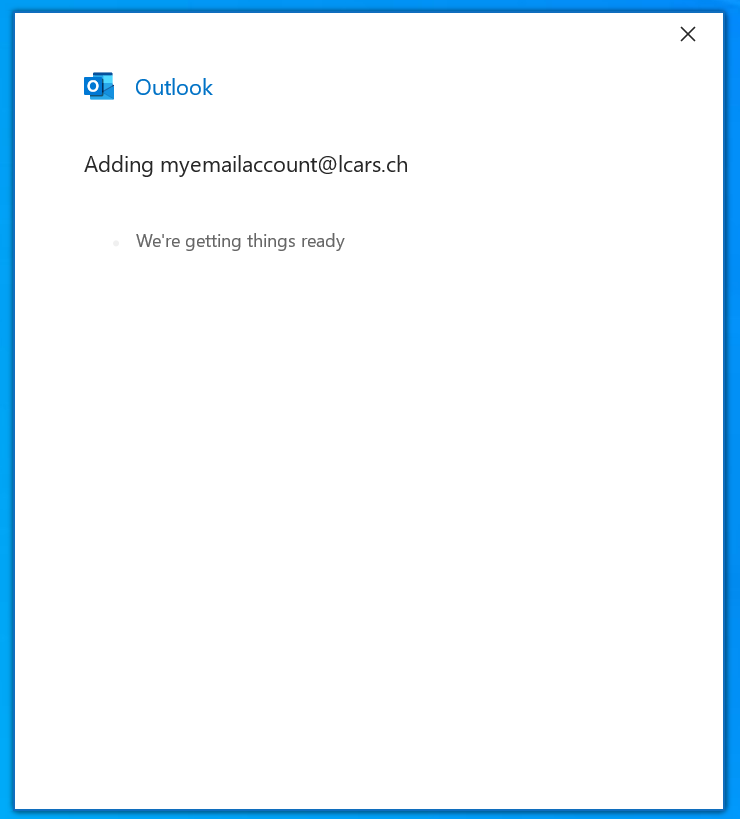
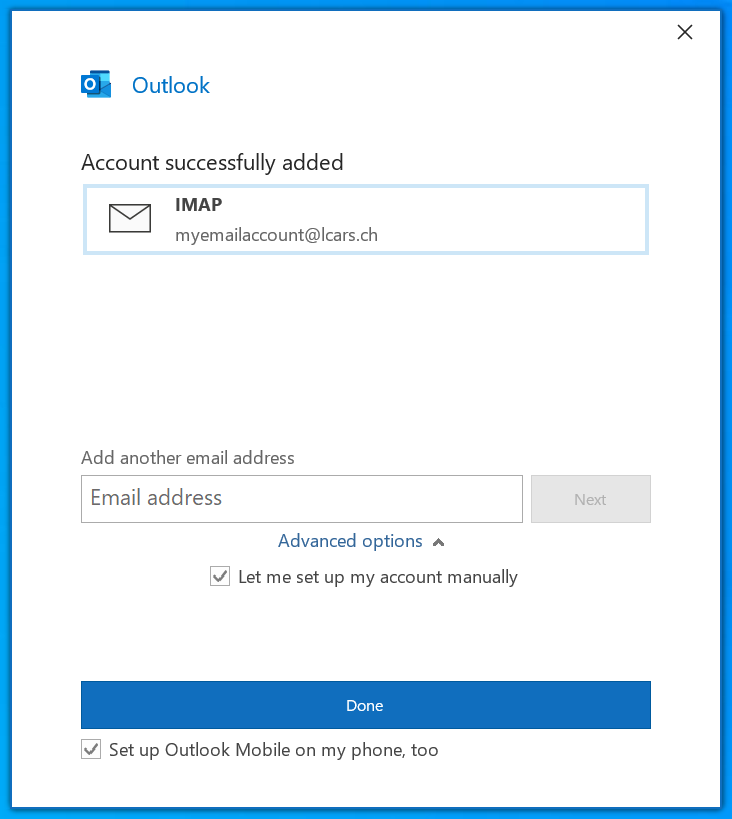
Outlook will test the connection and, once successful, show an "Account successfully added" confirmation. Click Done.
Your Topmail inbox will appear in Outlook's left-hand pane. Send yourself a test email to confirm everything is working.
Troubleshooting
Go back and double-check the server names are exactly imap.topmail.com and smtp.topmail.com, with the correct ports (993 / 587) and encryption methods (SSL/TLS / STARTTLS).
This usually means the username or password is wrong. Your username must be your full email address. Verify your password by logging into mail.topmail.com.
Go to File → Account Settings → Account Settings → select your account → Change → More Settings → Outgoing Server tab. Ensure "My outgoing server (SMTP) requires authentication" is checked and set to "Use same settings as my incoming mail server."
The newer web-based Outlook app included in Windows 11 has a different account setup flow. Use the Windows Mail app instead, or install the classic Outlook desktop app from Microsoft 365.