Thunderbird Setup Guide
Mozilla Thunderbird · Windows / Mac / Linux
Mozilla Thunderbird is a free, open-source email client available for Windows, Mac, and Linux. These steps work on all current versions of Thunderbird.
Settings at a Glance
Incoming Mail (IMAP)
Outgoing Mail (SMTP)
Steps
Open the account setup dialog
Open Thunderbird. If the account setup wizard doesn't appear automatically:
- Click the ≡ (hamburger menu) at the top-right → New Account → Existing Mail Account…
- Or: click File in the menu bar → New → Existing Mail Account…
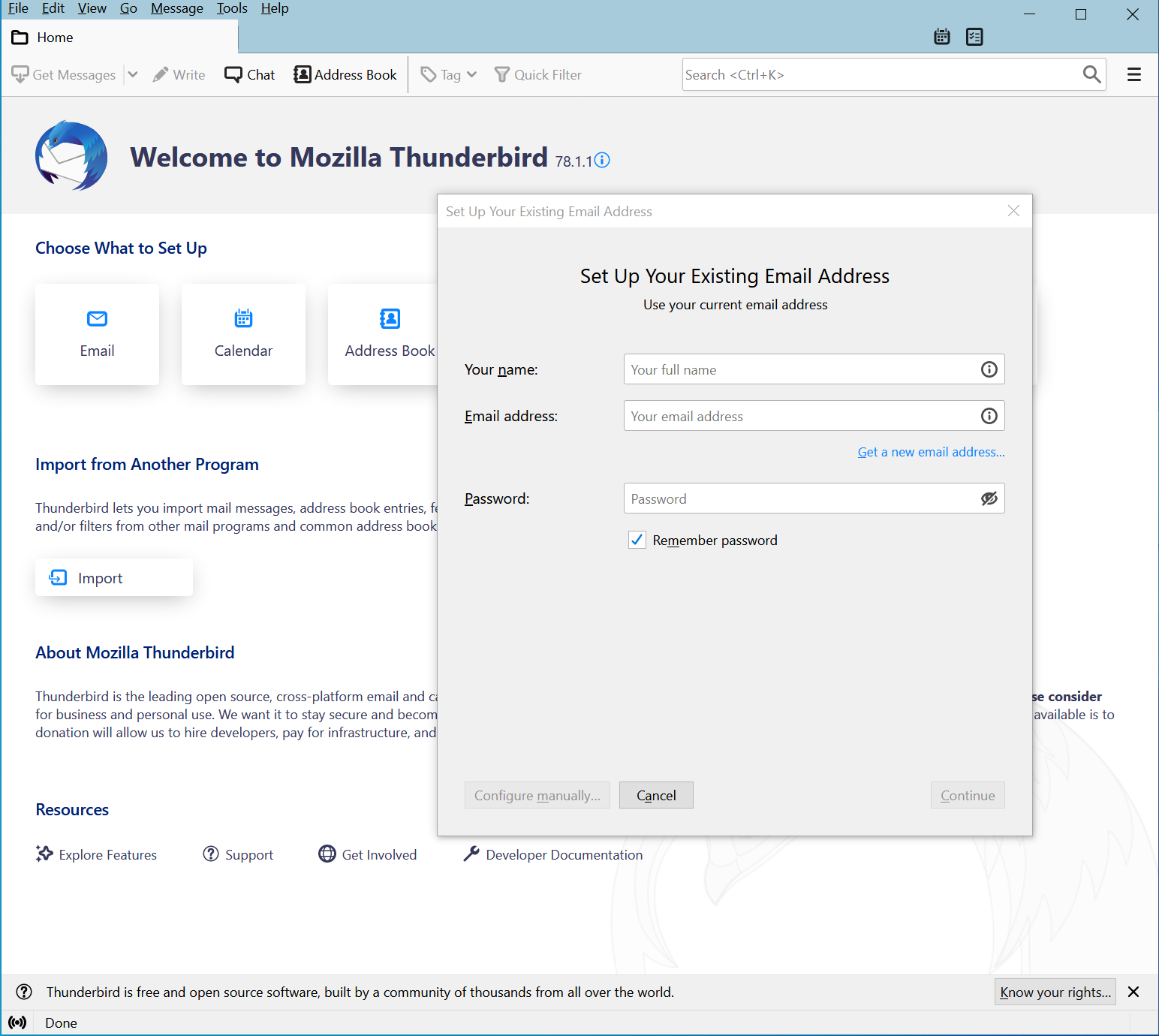
Enter your account details
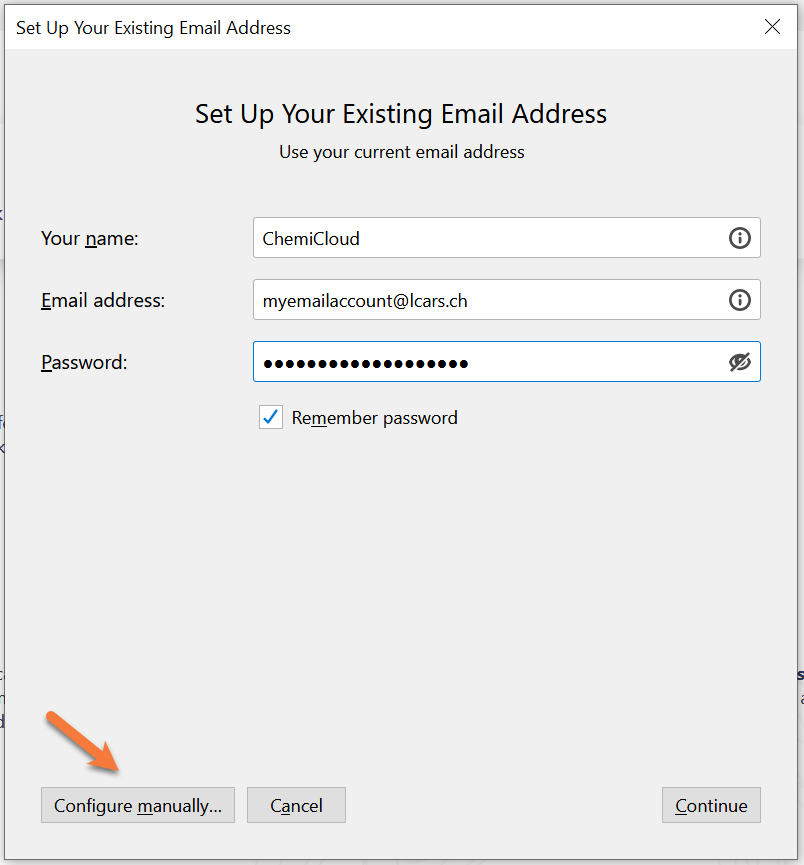
Fill in the three fields:
- Your full name: your name (shown on outgoing emails)
- Email address: your full email address
- Password: your email password
Click Continue. Thunderbird will attempt to find settings automatically. Once the lookup fails or times out, click Configure Manually.
Enter incoming (IMAP) settings
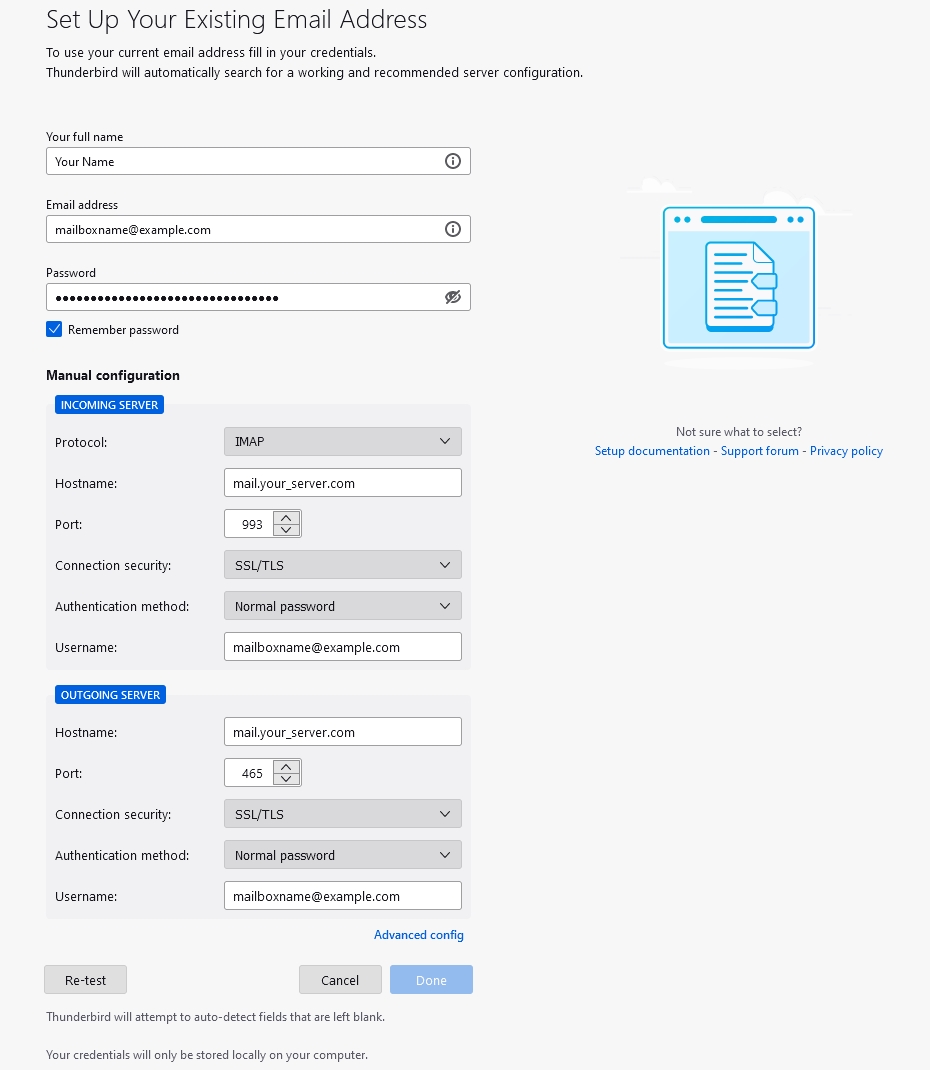
The manual configuration panel shows INCOMING SERVER and OUTGOING SERVER sections on the same screen. Fill in the Incoming Server fields:
- Protocol: IMAP
- Hostname:
imap.topmail.com - Port: 993
- Connection security: SSL/TLS
- Authentication method: Normal password
- Username: your full email address
Enter outgoing (SMTP) settings
On the same panel, scroll down to the Outgoing Server section and fill in:
- Hostname:
smtp.topmail.com - Port: 587
- Connection security: STARTTLS
- Authentication method: Normal password
- Username: your full email address
Test and confirm
Click Re-test. Thunderbird will attempt to connect to both servers using the settings you entered. If the test succeeds, you'll see a green confirmation message.
Click Done to finish. Your Topmail account will appear in Thunderbird's left-hand sidebar.
Troubleshooting
Confirm the IMAP server is exactly imap.topmail.com, port 993, connection security SSL/TLS, authentication Normal password, and the username is your full email address.
Confirm the SMTP server is smtp.topmail.com, port 587, connection security STARTTLS. Make sure authentication is Normal password and the username field is filled in.
Open Thunderbird's Password Manager (Tools → Password Manager), remove any saved entry for topmail.com, and restart Thunderbird to re-enter the correct password.
Right-click your account in the sidebar and choose Get Messages, or check Tools → Account Settings → Server Settings and ensure the folder polling interval is set appropriately.